The whole thing
See it before you sign up
No demo to book, no sales call. Here is every screen you'd actually use, in the order a workday runs.
01
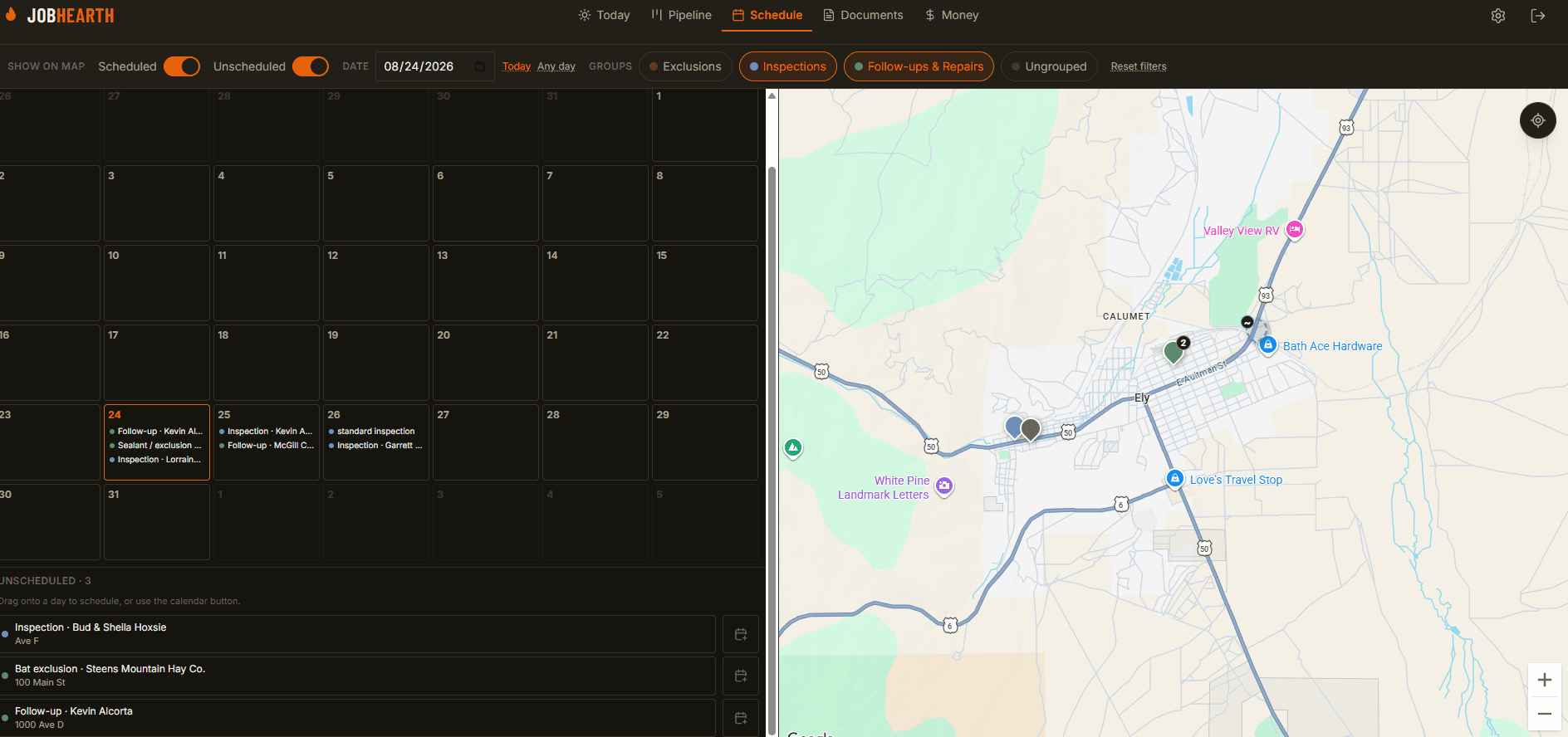
Map scheduling
See every job as a pin on a map, then drag one onto a day to schedule it.
Calendar and map are one surface, not two screens. Pins group by address, so two jobs at the same house are one stop. Approximate addresses are marked as approximate rather than quietly shown as exact — you can see which pins to trust.
02
Route my day
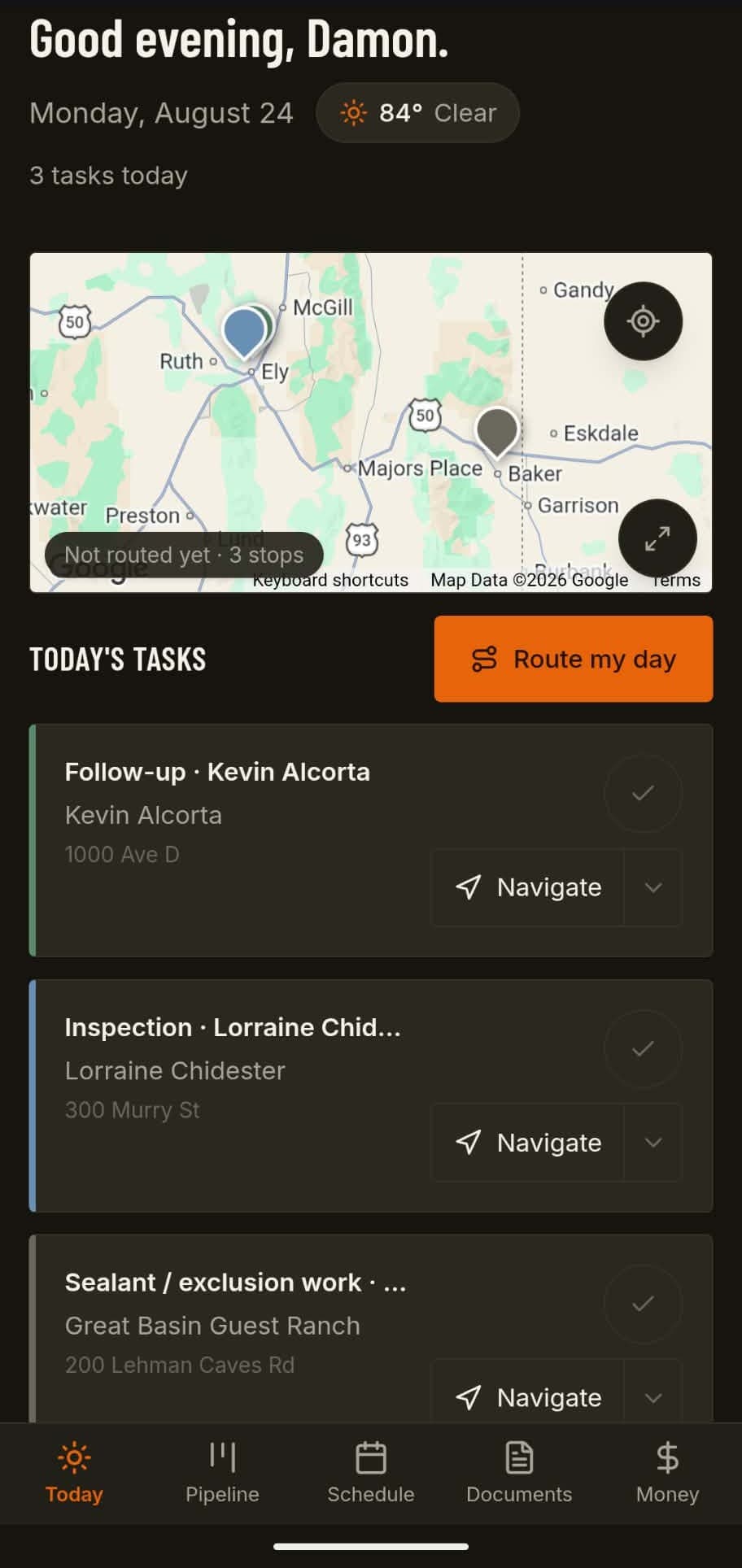
One tap puts the day's stops in driving order and gives every customer an arrival window.
The stops get numbered on the map and in your list, and each one gets a window like 9:00 AM–10:30 AM you can read straight to a customer. Re-route a day that already has times and it names each customer whose window would move before changing anything.
03
Job pipeline
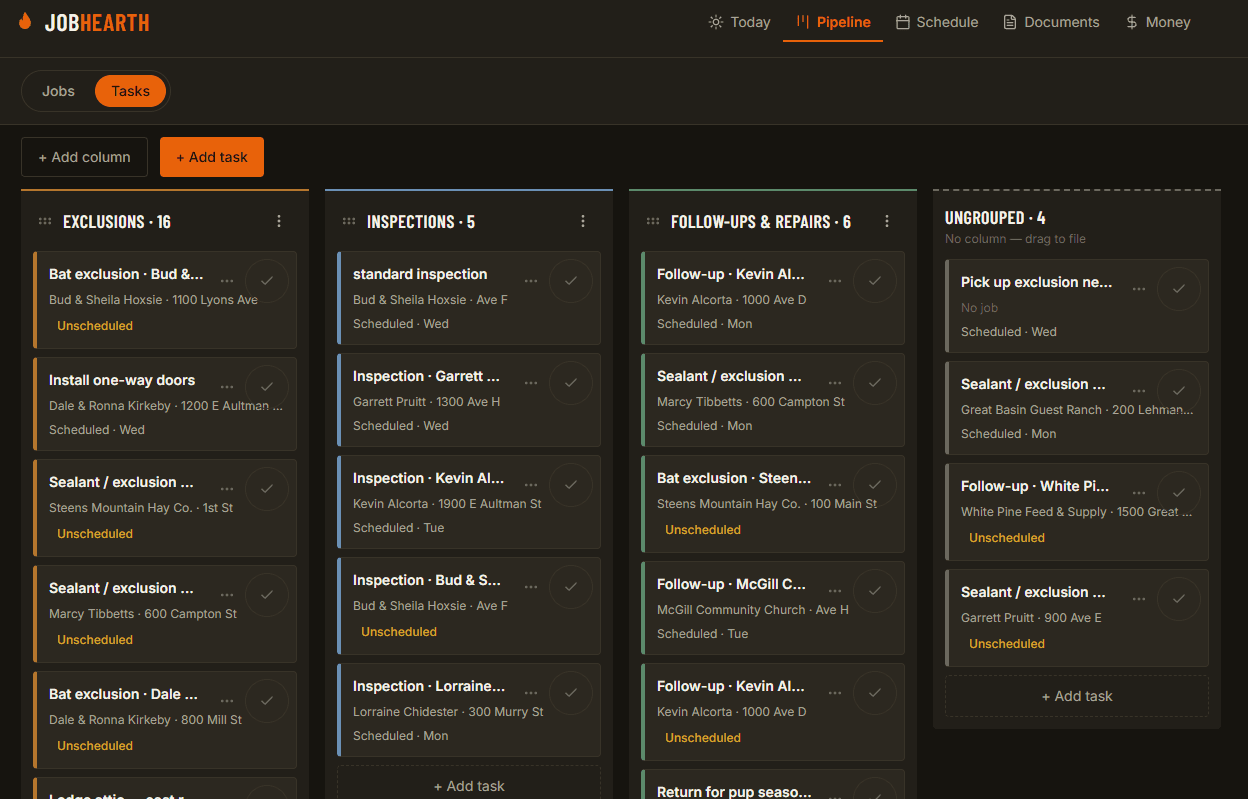
Every job on one board: Lead, Bid sent, In progress, Done. Drag to move it.
One record per job from first call to final payment — no separate sales pipeline and project board to keep in sync. Each card shows how far along the paperwork is: bid sent, signed, invoiced, paid. Drag a job to Bid sent and a draft bid is waiting for you.
04
Bids signed on-site
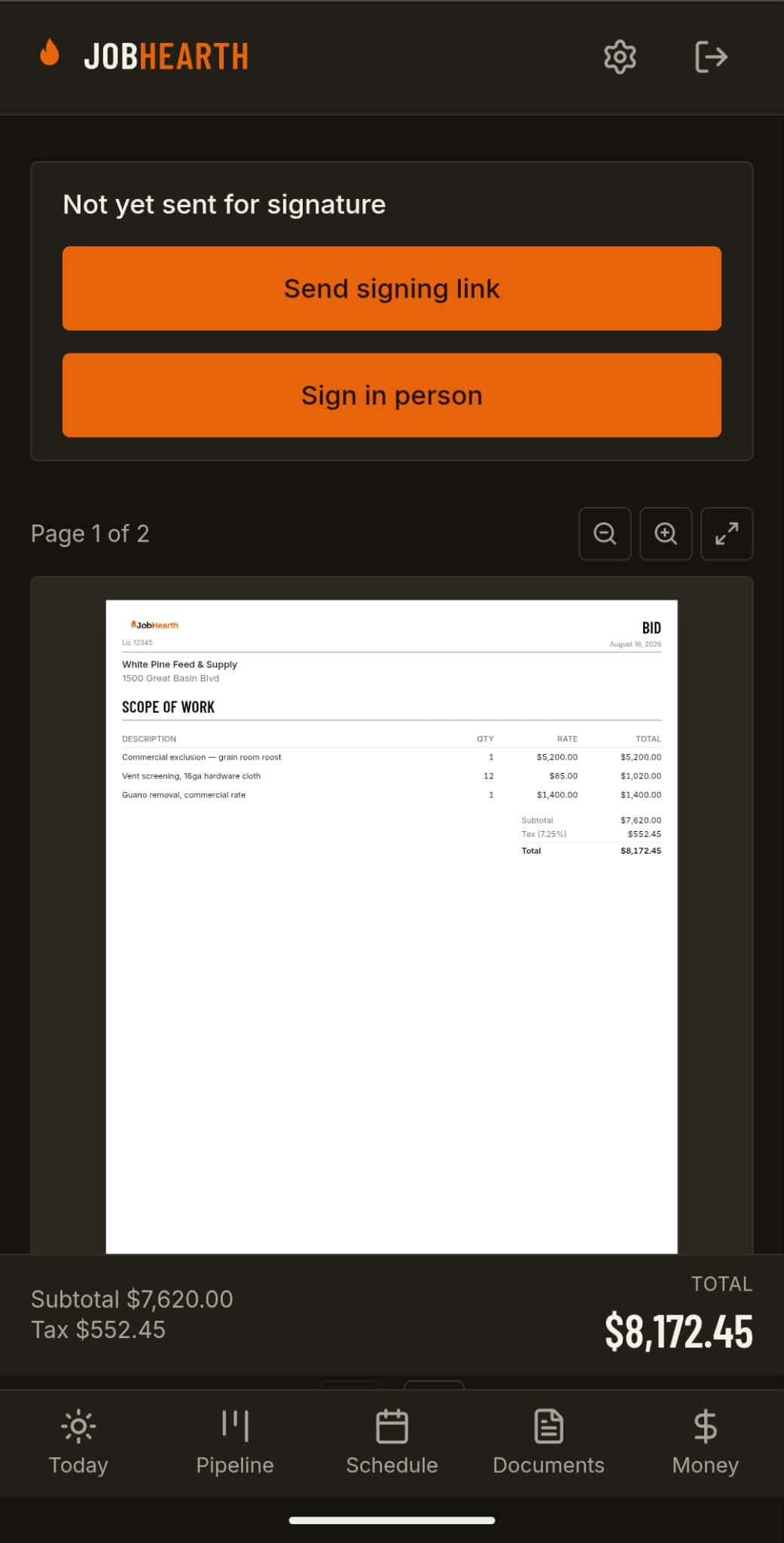
Build a bid, text the signing link in one tap, or hand over your phone and get it signed on the spot.
Line items come from your own saved price list. The customer signs with a finger — on your phone at the kitchen table, or on their own phone from the link. The signed PDF carries an audit page showing when and from where it was signed.
05
See what you're owed
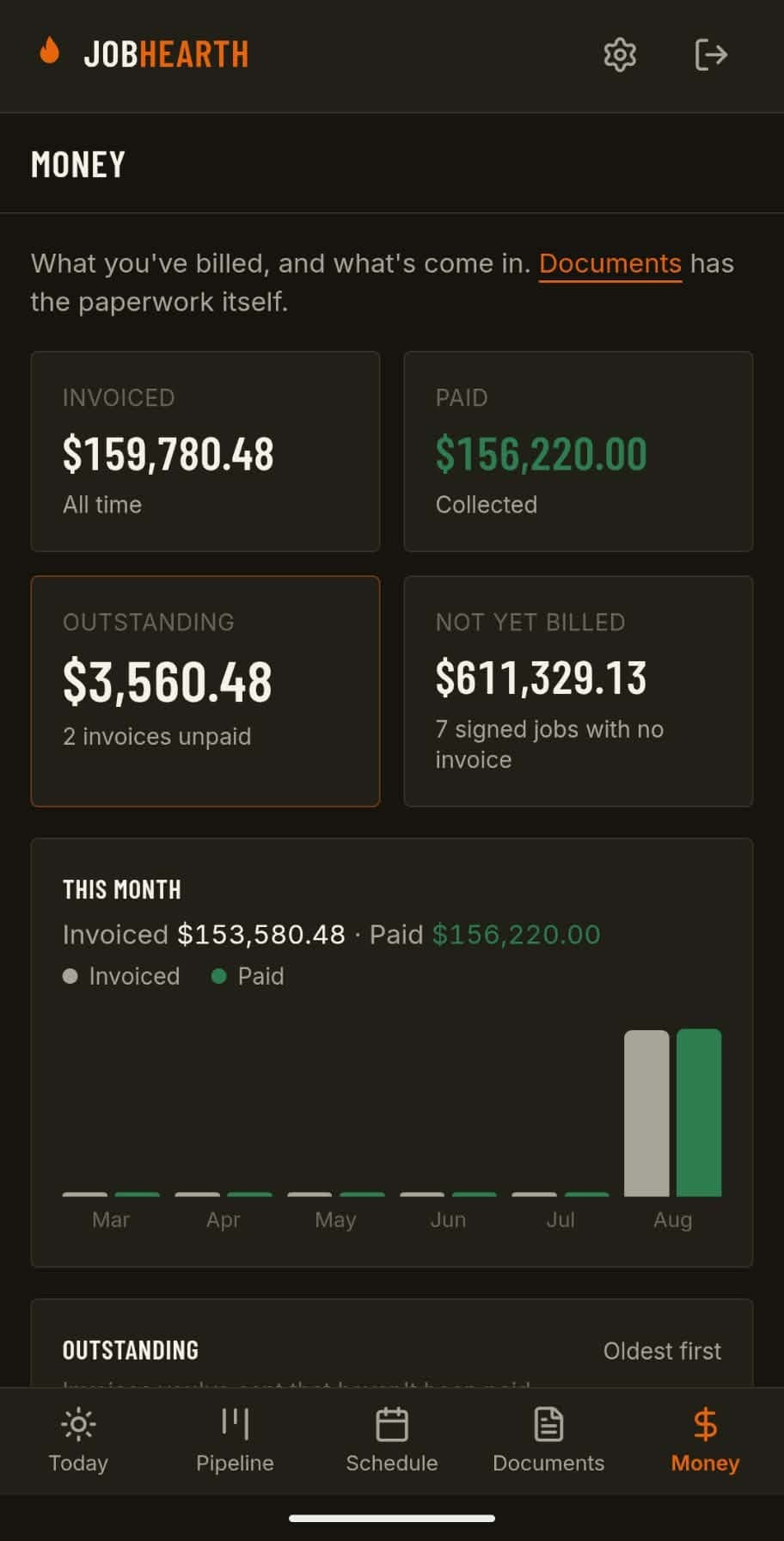
Every unpaid invoice, every bid still waiting on a signature, and the signed work you never billed.
That last one is the one that costs you money quietly: a job someone agreed to pay for, where no invoice was ever raised. It doesn't announce itself from inside the job — you'd have to open each one and notice something missing. Here it's a group with a total on it.
06
Photos from the job
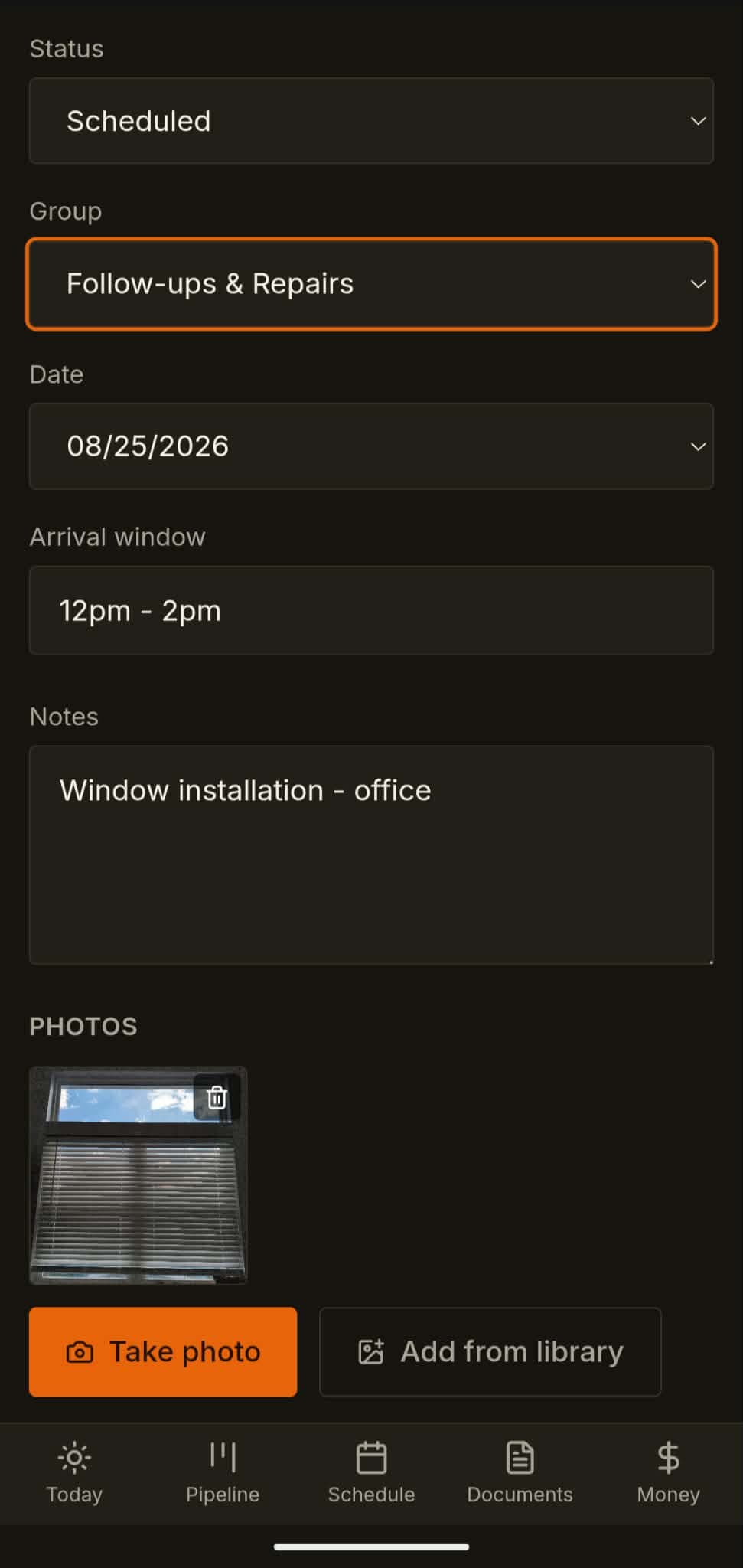
Open the camera from a task and shoot what you found. Put photos on a bid or invoice too.
Photos are taken straight from the task on your phone — the attic, the damage, the finished work — and they're rotated and resized before upload so a full-size photo over a weak signal still lands. Bids and invoices have their own photo gallery with a cover shot.
That's all of it
Nothing held back for a paid tier — there isn't one. Try it on real jobs for 30 days and see whether it earns a spot on your phone.
No credit card